
Text Editor for macOS
A text editor for running several projects at once while AI agents edit your files. Every project gets its own window color, and every line an agent rewrites is marked the moment it saves.
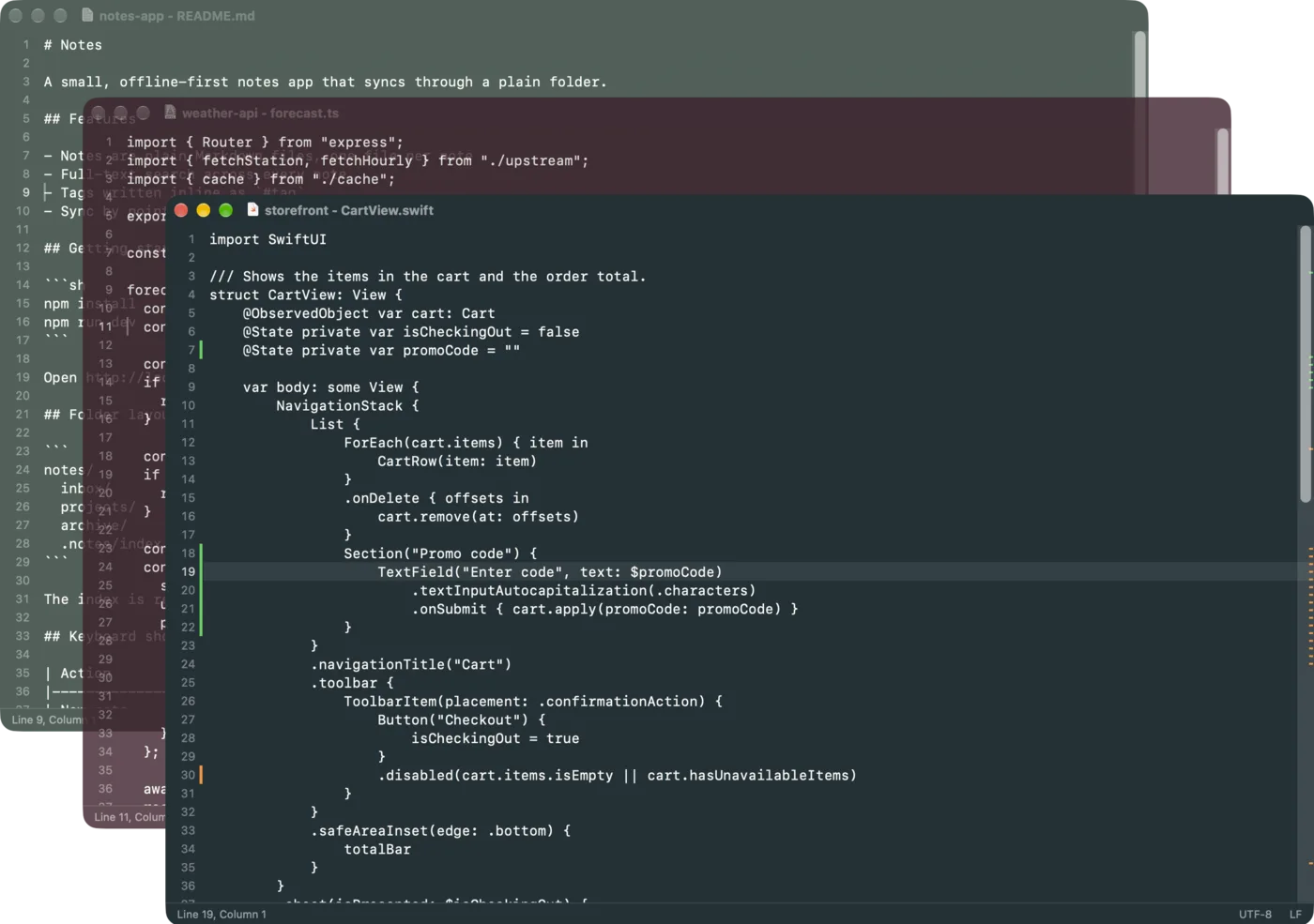
While an agent works in one project, you work in another. KodamaEditor keeps track of which window is which and what changed.
Register a color for a folder, and every file inside opens in that color. Eight themes drawn from traditional Japanese colors, each with a light and a dark version.
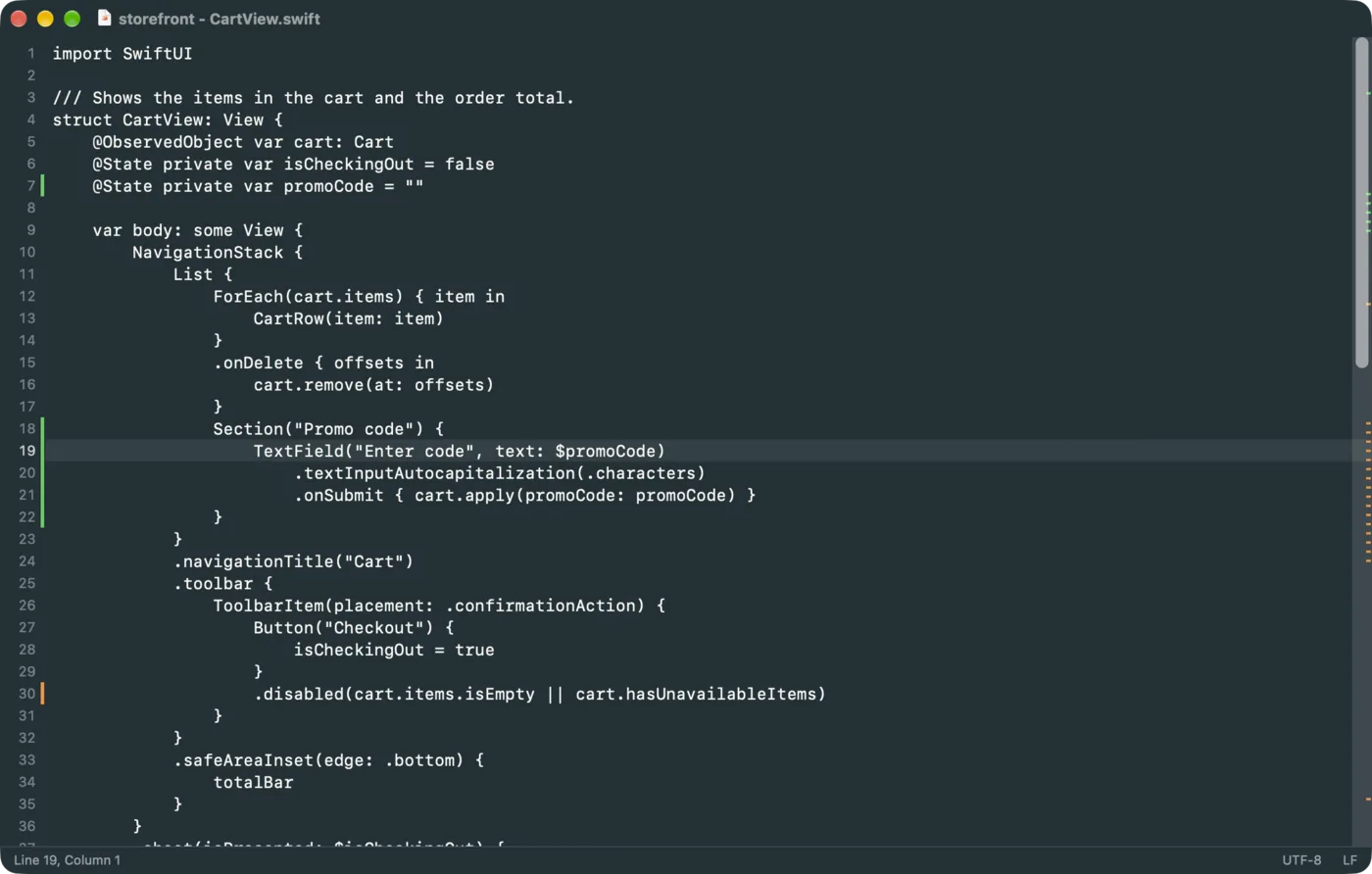
When another app rewrites an open file, KodamaEditor reloads it and marks the added, changed and deleted lines. One Undo brings the previous text back.
Nothing is written to your file until you choose Save, so an agent's work is never overwritten behind your back. Your unsaved lines are marked in blue.
Detects Unicode, Japanese, Chinese, Korean and European encodings. Bytes that cannot be decoded are kept as they are, so opening and saving never damages a file.
Opens a 1 GB file in about a second. Scrolling, typing and search stay smooth at any size, up to 4 GB.
KodamaEditor never connects to the network and collects no data. It runs in the macOS App Sandbox and opens only the files you choose.
When Claude Code, Codex CLI or any other tool rewrites an open file, KodamaEditor reloads it automatically and marks the lines in the gutter. Marks stay until you clear them, so you can review several rounds of edits at once.
| Green | Added by another app |
| Amber | Changed by another app |
| Red triangle | Lines deleted here |
| Blue | Your own unsaved edits |
Jump between changes with View > Next Change (Ctrl+Option+↓). View > Clear Change Marks removes them. To undo an outside rewrite, choose Edit > Undo.
Window > Background (Ctrl+Cmd+] / [) changes the color of the current window. To give a whole project its color:
Sumi (ink) Tetsukon (iron navy) Aitetsu (indigo iron) Chitose (pine green) Kuchiba (fallen leaf) Kurikawa (chestnut brown) Enji (crimson) Shikon (royal purple)
Windows in the background turn translucent so the one you are typing in stands out. Change or remove folder colors in Settings > Folder Colors.
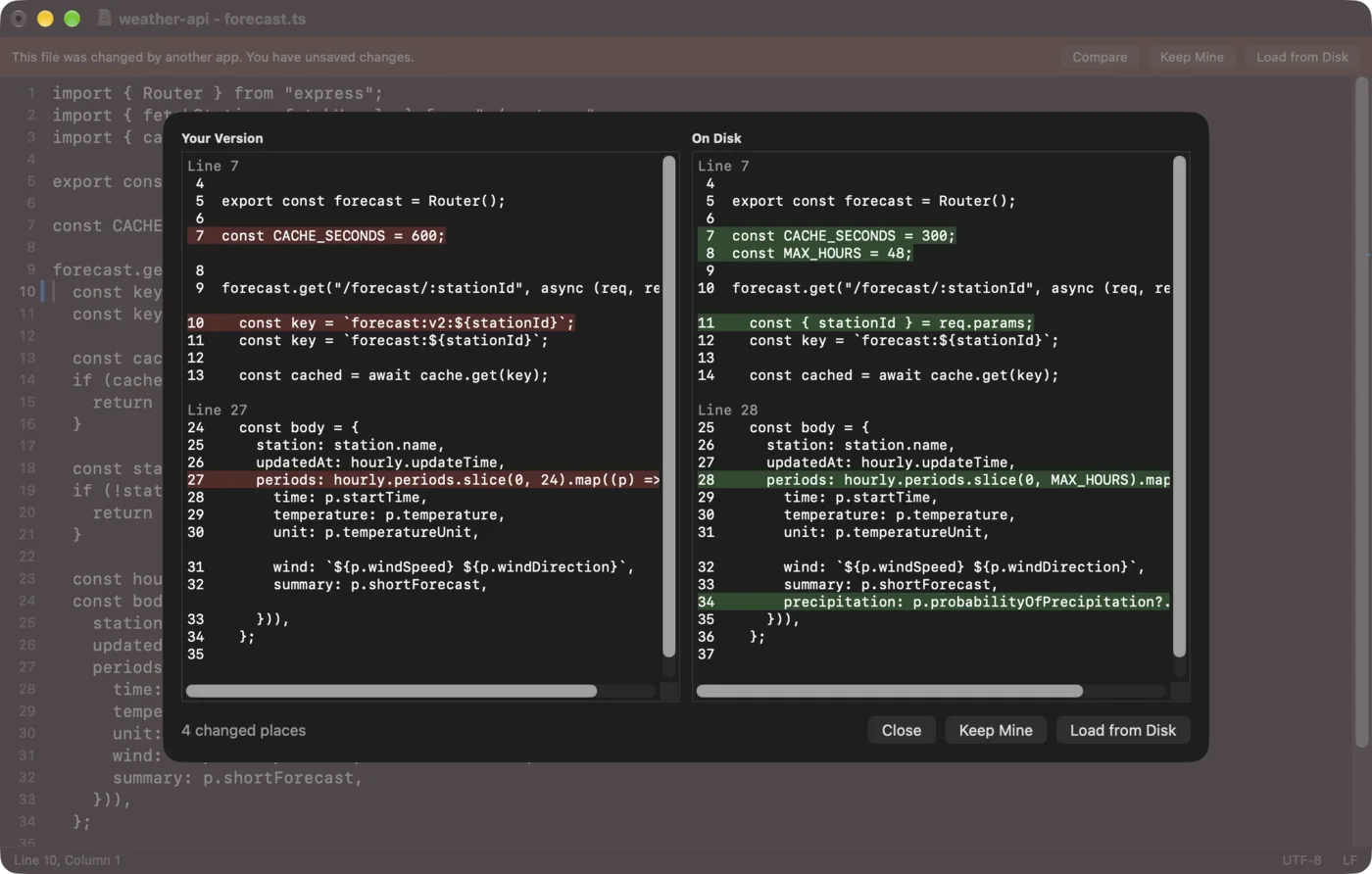
If a file changes on disk while you have unsaved edits, a bar appears at the top of the window. Choose Compare to see your version and the file on disk side by side, then keep yours or load the one on disk.
KodamaEditor saves only when you choose File > Save. Your unsaved work is backed up every 15 seconds inside the app's own storage and restored if the app quits unexpectedly.
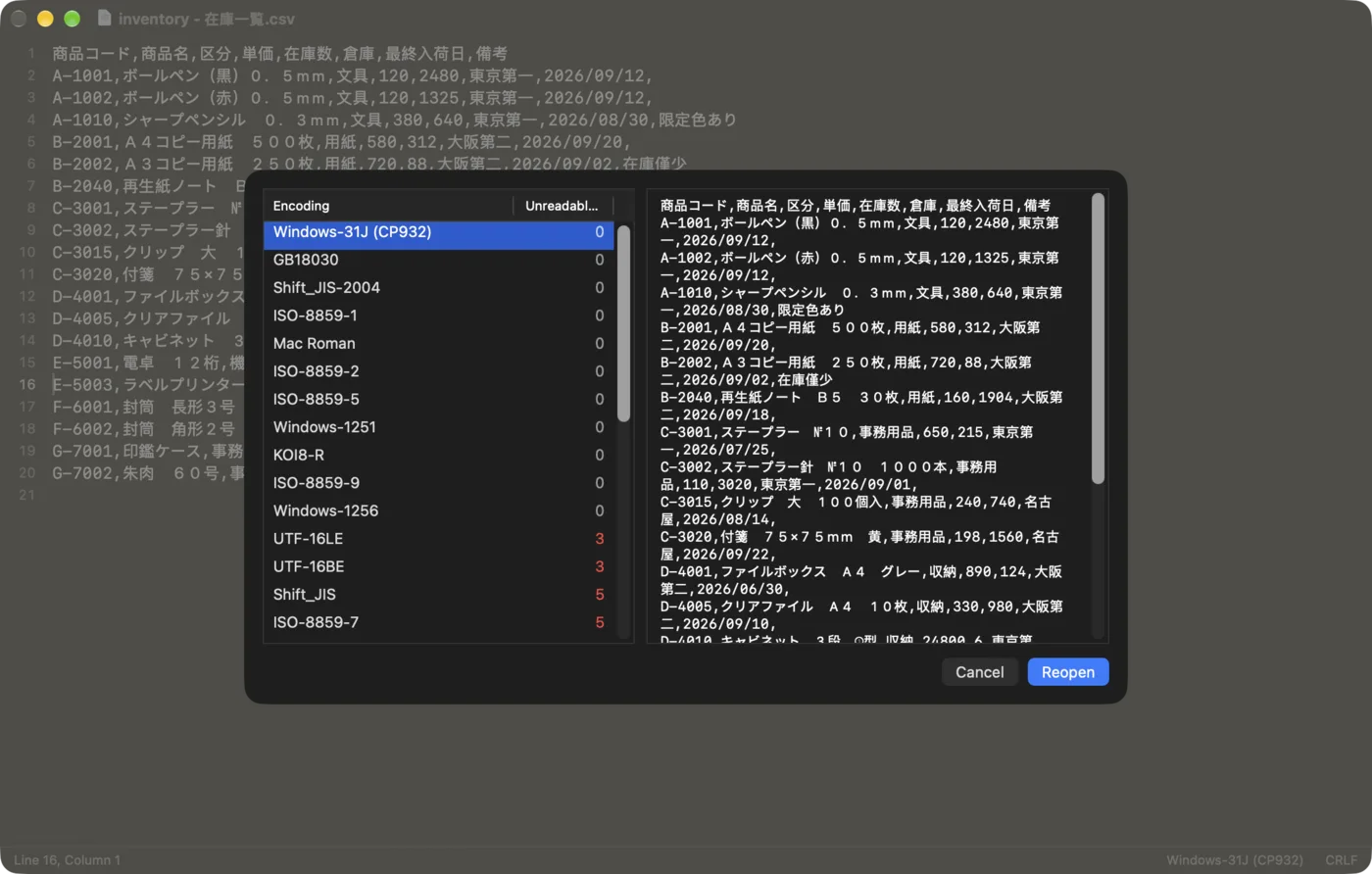
The encoding is detected from the byte order mark, the declaration in the file, and how cleanly each candidate reads it. The status bar shows the result; click it to see why that encoding was chosen.
| Unicode | UTF-8, UTF-8 with BOM, UTF-16LE / BE, UTF-32LE / BE (with or without BOM) |
| Japanese | Windows-31J (CP932), Shift_JIS, Shift_JIS-2004, EUC-JP, eucJP-ms, EUC-JIS-2004, ISO-2022-JP, ISO-2022-JP (CP50221) |
| Chinese (Simplified) | GB18030 |
| Chinese (Traditional) | Big5 (CP950), Big5-HKSCS |
| Korean | EUC-KR (CP949) |
| Western European | ISO-8859-1, Windows-1252, Mac Roman |
| Central European | ISO-8859-2, Windows-1250 |
| Cyrillic | ISO-8859-5, Windows-1251, KOI8-R |
| Greek | ISO-8859-7, Windows-1253 |
| Turkish | ISO-8859-9, Windows-1254 |
| Hebrew / Arabic | Windows-1255, Windows-1256 |
| Thai / Vietnamese | Windows-874, Windows-1258 |
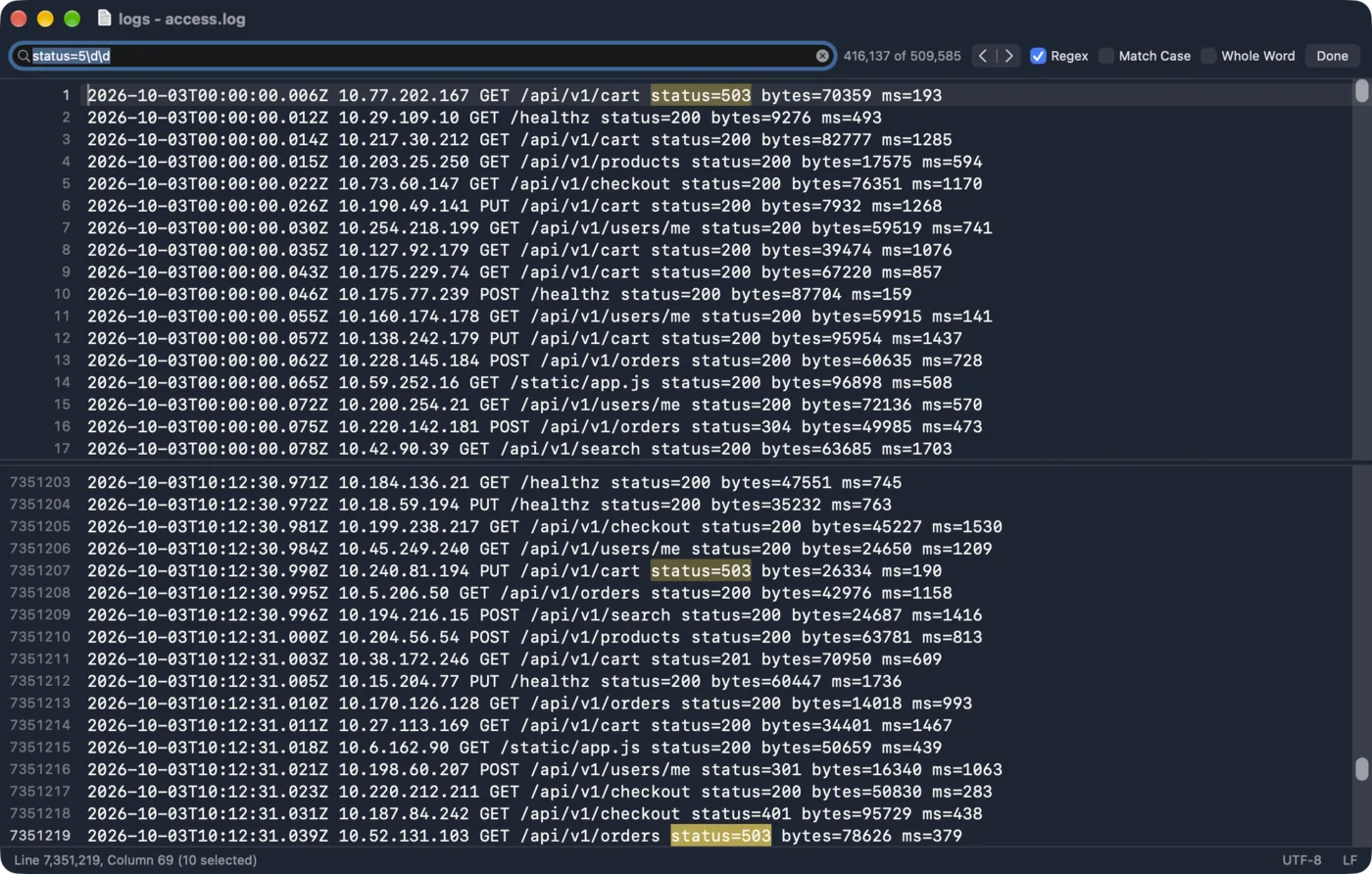
KodamaEditor draws only the lines on screen, so a 1 GB log opens in about a second and scrolls as smoothly as a short note. Files up to 4 GB are supported.
View > Split Top and Bottom (Shift+Cmd+D) shows two places in the same file. Find and replace supports regular expressions, case matching and whole words, and large files are searched in the background.
| Cmd+F / Cmd+Option+F | Find / Find and replace |
| Cmd+G / Cmd+Shift+G | Next / previous match |
| Cmd+E | Use the selection for Find |
| Cmd+L | Go to line |
| Cmd+] / Cmd+[ | Indent / outdent lines (also Tab / Shift+Tab with several lines selected) |
| Option+drag | Rectangular (column) selection |
| Ctrl+Option+↓ / ↑ | Next / previous change |
| Shift+Cmd+D | Split top and bottom / close split |
| Ctrl+Cmd+↑ / ↓ | Move to the upper / lower editor |
| Ctrl+Cmd+] / [ | Next / previous background color (this window only) |
| Cmd++ / - / 0 | Larger / smaller / reset font size of this window |
| Cmd+, | Settings: font, line spacing, tabs, line numbers, invisible characters, current line highlight, encodings, folder colors |
Standard macOS text shortcuts work too, including Emacs-style keys such as Ctrl+K and Ctrl+Y. Edit > Convert converts letters, numbers and katakana between full width and half width.
Questions, bug reports and feature requests are welcome through our contact form. Please include your macOS version and, for problems with a particular file, its encoding as shown in the status bar.
KodamaEditor runs in the macOS App Sandbox, so its settings and the backups of unsaved work live in ~/Library/Containers/com.kodama.KodamaEditor.
Choose File > Reopen with Encoding... and pick the right one from the list. To change which encodings are tried first, change the detection order in Settings > Encoding.
Check that "Reload automatically when changed by another app" is on in Settings > General. If you have unsaved edits, KodamaEditor shows a bar at the top of the window instead of reloading, so that your edits are not lost.
Move KodamaEditor to the Trash. To remove your settings as well, delete ~/Library/Containers/com.kodama.KodamaEditor.
Free for macOS 14 Sonoma or later. Questions or bug reports? Contact us.
Get it on the Mac App Store